There are so many occasions that we need to insert a PDF into Word, which is of great help for us to demonstrate, illustrate, and support our ideas and opinions. In this passage, we would like to introduce several methods about how to insert a PDF into Word – to insert PDF into Word directly, to copy PDF text into Word, and to use screenshots.
Method 1 – Inserting PDF files into Word document directly
If you need to insert all of the PDF content into a Word document, inserting PDF files into Word documents is an ideal way. The relevant steps are as follows.
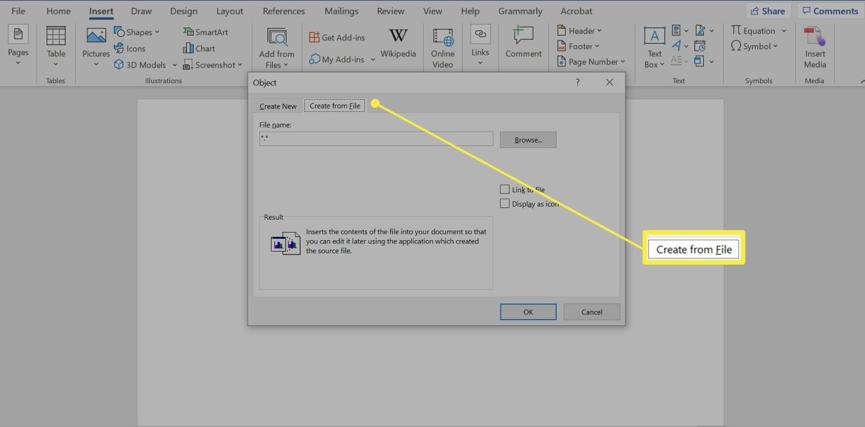
1. Click the Insert in the Word document firstly and choose Object in the Text section.
2. Choose the Create from File option and then click Browse later. Just click the PDF file that you want to insert and click OK to embed the file into the Word document.
3. You can choose the PDF file to show as an icon or linked object. If you choose the Link to File, any changes in the PDF file will also show in the Word document automatically. So, we don’t need to change the data in the Word documents by hand when any changes in the PDF file occur.
Bear in mind that if you want to insert PDF files into Word document directly, you’d better compress the PDF firstly. The reason is that it’s very likely that the Word documents will become so large that they are not easy to download. So, compressing PDF files firstly will relieve this anxiety.
Method 2 – Pasting and copying text from PDF into Word
If you just need the text content of one PDF file or the PDF file is text-based, you can choose to paste and copy text from PDF into Word.
1. Open the PDF file and decide the PDF content scope that you need and right-click to pick the Copy button.
2. The next step is to open the Word document and paste the PDF text where you would like to.
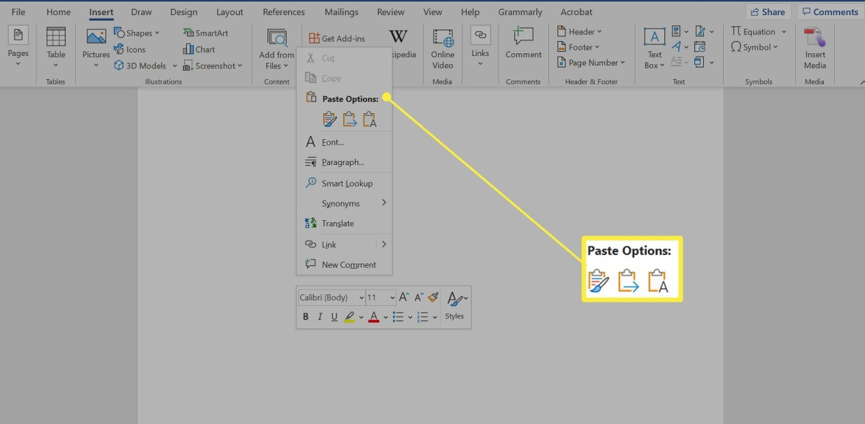
In this way, you can easily paste and copy text from PDF into Word. But, you will just get the plain text without any formatting if you take this method. If you don’t want to just the plain text, you can choose the paste options in advance.
Method 3 – Using screenshots to insert a PDF into Word
When you just need some small areas of a PDF file like images or equations, you can use the screenshots to insert the corresponding PDF content into Word documents.
1. Open the PDF file and press Windows key + Shift + S.
2. Choose the PDF area that you want to insert into Word. The computer will save the screenshots to the clipboard.
3. Insert the screenshots into the Word documents where you want to insert. You can adjust the place and size of the screenshots based on your needs.
There is one tip for you if want to use screenshots to insert a PDF into Word documents. You can use the Crop PDF tool to cut the blank areas firstly, which will omit the need to snap every page.
What we have mentioned above are the ways to insert a PDF file into a Word document and their operations are very simple. These three methods are suitable for different occasions and situations. You can choose one of them according to your needs and requirements. It’s hoped that these tips can help all of you.